
Stay connected with Koenig Equipment on Facebook by turning on notifications so you never miss important updates, events, or equipment tips.
Why you might not see every post
Facebook decides what to show in your feed based on what it thinks you are most likely to interact with, prioritizing friends and family over business Pages like ours. This means even if you follow Koenig Equipment, our posts may be pushed down or skipped entirely unless you regularly engage with them or adjust your settings.
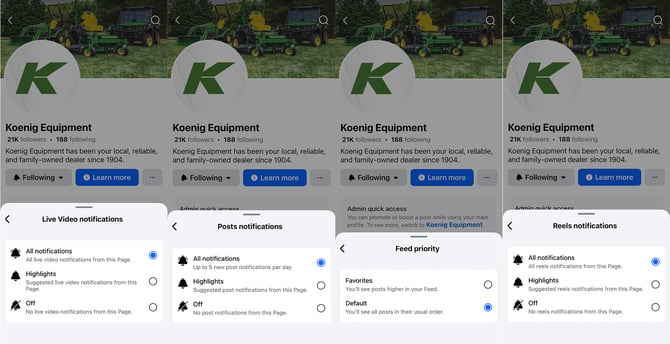
When you turn on notifications and add a Page to your Favorites, Facebook will show that Page’s posts higher in your feed and you can also get alerts when new posts go live. This makes sure you see time-sensitive content like seasonal service tips, promotions, and local news from your nearest Koenig Equipment location.
Benefits of turning on notifications
Turning on notifications for Koenig Equipment helps you:
-
See important service reminders, seasonal maintenance tips, and how-to content as soon as it is posted.
-
Stay informed about local events, programs, rebates, and sales that can save you time and money on equipment and service.
-
Keep up with new product launches, technology updates, and community highlights from your local Koenig team.
Adding Koenig Equipment to your Favorites also tells Facebook to show our posts closer to the top of your feed so you spend less time searching for updates.
How do I turn on Facebook notifications with my mobile app?
Use these steps on the Facebook app for iPhone or Android:
-
Open the Facebook app and search for “Koenig Equipment,” then tap our Page. Or click here.
-
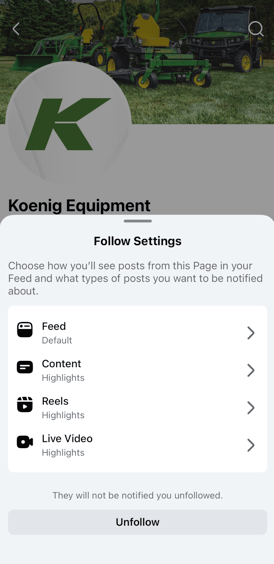
On the Page, tap the “Following” or “Follow” button near the top.
-
Under “Notifications,” choose what you want to be notified about, such as “Posts,” “Videos,” or “Live video,” then set them to “Standard” or “All.”
-
To fine-tune what Facebook can send to your phone, go to Menu → Settings & privacy → Settings → Notifications, then adjust which alerts you receive (push, email, SMS).
If you want notifications to appear on your device’s lock screen, also check your phone’s system settings and make sure notifications are allowed for the Facebook app.
Turn on notifications on Facebook from a computer
If you use Facebook in a web browser on your computer:
-
Go to facebook.com and search for “Koenig Equipment,” then click our Page.
-
Under “Notifications,” select the types of posts you want to get notified about and then click “Update” to save your choices.
-
To manage overall Facebook notifications, click your profile photo → Settings & privacy → Settings → Notifications, then adjust what you are notified about and how (on Facebook, email, or browser).
If you use a desktop browser that supports notifications, make sure browser notifications for Facebook are turned on so alerts can appear even when you are not on the Facebook tab.
Add Koenig Equipment to your Favorites (show posts higher in your feed)
Adding Koenig Equipment to your Favorites helps our updates appear higher and more often in your main Facebook feed.
On mobile or desktop:
-
Visit the Koenig Equipment Facebook Page.
-
Look for an option like “Favorites” or “Add to Favorites” and select it.
Once Koenig Equipment is in your Favorites, Facebook will show more of our newest posts near the top of your feed, making it easier to catch product news, maintenance reminders, and local updates without scrolling.
We'll see you on the timeline!