
Yes, you can measure square footage on Google Maps, and you do not need a separate calculator. The built-in Measure distance tool lets you outline a lot, field, lawn, or garden and shows the total area in square feet once you close the shape. The steps below use Google Maps in a desktop web browser.
Step-by-Step Instructions
1. Open Google Maps
2. Find Your Location
-
Enter an address or zoom in and pan to the property or area you would like to measure.
3. Activate the Measure Feature
-
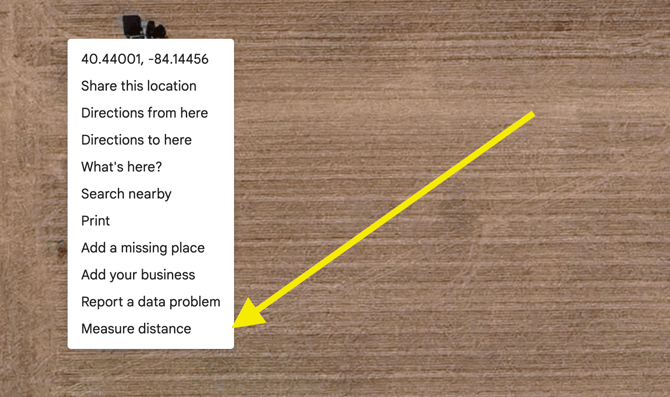
Right-click on the starting point of your area on the map.
-
Select “Measure distance” from the context menu.
4. Outline the Area
-
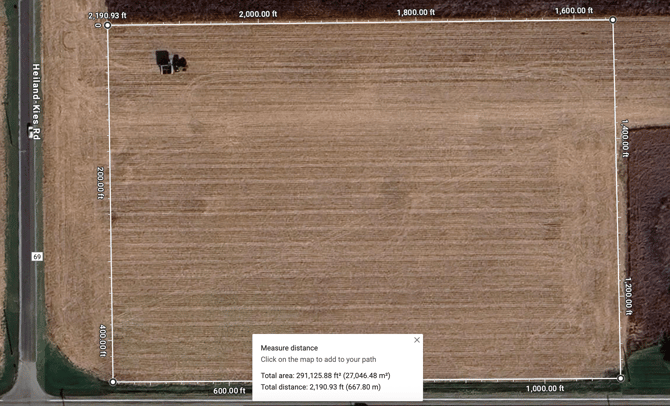
Click sequentially around the boundary of the area you want to measure. For each click, a straight line appears connecting the points.
-
To close the shape, click on your starting point again.
5. View the Results
-
Google Maps automatically displays both the total distance (perimeter) and the total area in square feet (ft²) and square meters (m²).
-
The measurement box stays on the map, allowing you to review or adjust your boundary by dragging any vertex or adding new points.
Tip: Take a screenshot of your map and measurement, or simply record the area value for your records.
Tips for Accurate Measurement
-
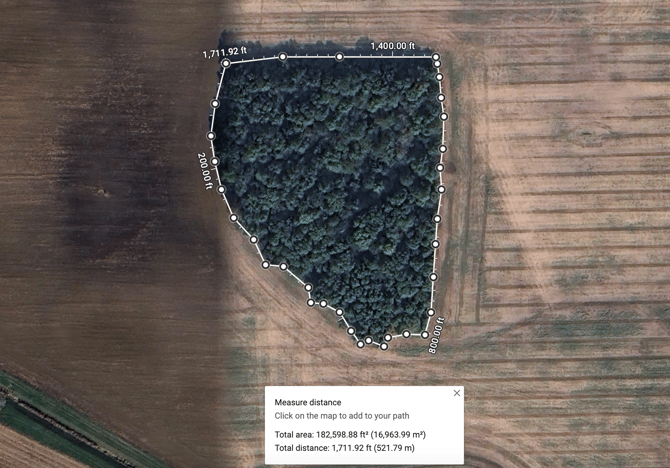
The area total only appears after you close the shape by clicking your starting point. If you only see a distance, your outline is still open.
-
Zoom in close for precise placement of boundary points.
-
Use more points to outline irregular shapes.
-
Measurements in Google Maps are most accurate for flat ground and can vary for uneven terrain.
-
Google Maps works best for outdoor measurements; for indoor, use dedicated floor plan software.
Applications
-
Land purchases and sales: Verify total plot size.
-
Agricultural planning: Estimate fields for crops or equipment needs.
-
Construction: Calculate square footage for building permits.
-
Your equipment needs: Measure the area you actually mow, till, or clear, not just the whole property. That number helps our team point you to the right size mower, tractor, or attachment.
Additional Tips
-
If you make a mistake, click a point and you can drag or remove it.
-
The area calculation updates automatically as you change the outline.